Printing Draft Forms
Draft medication review forms and invitation letters can be force printed or manually printed prior to completing a medication review.
Prior to completing a medication review, you have the option to print the forms with the fields populated or not. This is useful in situations where you have limited access to a computer or tablet, or you want to complete the review by hand.
Force Printing a Medication Review
In Alberta, British Columbia, Saskatchewan, and Ontario, draft medication review forms and medication records can be printed automatically when a patient meets eligibility criteria according to provincial requirements.
-
The medication review forms are pre-populated with the patient's information, including carry-forward notes from previous medication reviews. In Ontario, consent forms only force print if there is no medication review consent on file in the last 365 days.
-
The medication record serves as a reminder to schedule a medication review for the patient. It includes a list of medications on the patient's Profile, sorted in descending order by date. At the top, the type of medication review that the patient is eligible for is indicated. To the right, the Medication Possession Ratio (MPR) for each medication is listed. If no MPR score exists for any of the medications (e.g., all PFS or not chronic), the MPR column is hidden. Only 1 medication record prints for each eligible patient regardless of the number of prescriptions processed.
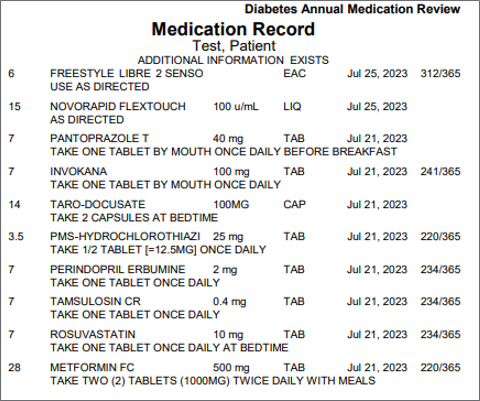
For a list of medication review types that can be force printed, select the dropdown below.
 Medication Review types that can be force printed
| British Columbia |
|
| Alberta* |
-
Comprehensive Annual Care Plan (CACP)
-
Diabetes Standard Medication Management Assessment (Diabetes SMMA)
-
Standard Medication Management Assessment (SMMA)
|
| Saskatchewan |
|
| Ontario |
|
*For Alberta, the abbreviated names indicated in brackets are printed on the Medication Record.
At a maximum frequency of once per day per patient, a force print can occur when a prescription is processed for the eligible patient. Depending on the Print Med Review Forms After preference in Workflow Preferences, the documents can print following the completion of specific Workflow steps.
To set the Print Med Review Forms After preference:
-
Select More > Pharmacy > Workflow.
-
Dropdown the Print Med Review Forms After field and select one of the following:
-
Data Entry - if you want the medication review forms and medication records to print after Data Entry is completed.
-
Clinical Review - if you want the medication review forms and medication records to print after Clinical Review is completed.
-
Select Save.
When a force print occurs, a record is added to the Patient Folder History tab with the following information:
-
Entered = date and time the document was printed
-
User = user who completed Data Entry or Clinical Review for the prescription
-
Event = Med Review Forms Print (PMRF) or Letter Printed
-
Activity = Printed
-
Comments = description of the medication review type that the patient was eligible for
The medication record can be reprinted from the Patient Folder History tab by selecting the applicable row and then Re-Print. The medication record will assume the same printer as the Thermal Receipt/Record in More (...) > System.
Manually Printing a Medication Review
Use the dropdowns below to learn about manually printing medication review forms.
Printing a Saved Medication Review
-
Launch a new or saved medication review.
-
Enter information in the various fields as needed.
-
Select Save at the bottom of the medication review.
If Save is not selected before proceeding to the next step, the medication review is saved automatically.
-
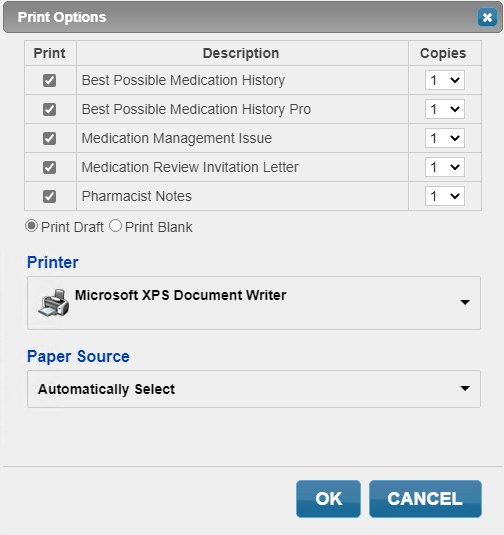
Select Print Draft. The Print Options window opens.
The image below is for a BC Medication Review.
-
Select the sections of the medication review that should be printed and the number of copies.
-
Select OK. The medication review is printed.
Printing a Blank Medication Review
-
Launch a new or saved medication review.
-
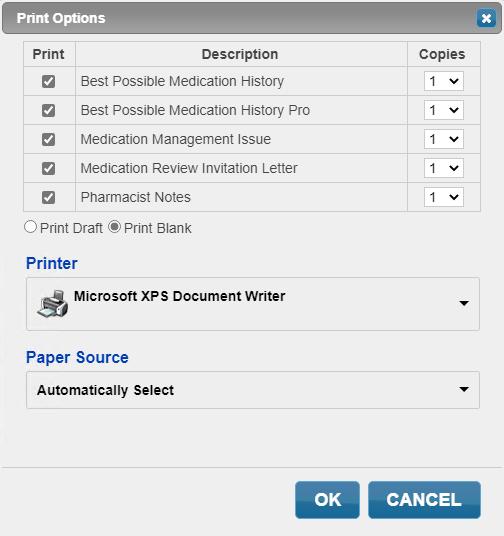
Select Print Draft at the bottom of the medication review. The Print Options window opens.
The image below is for a BC Medication review.
-
Select the sections of the medication review that should be printed and the number of copies.
-
Select Print Blank.
-
Select OK. The medication review is printed.